
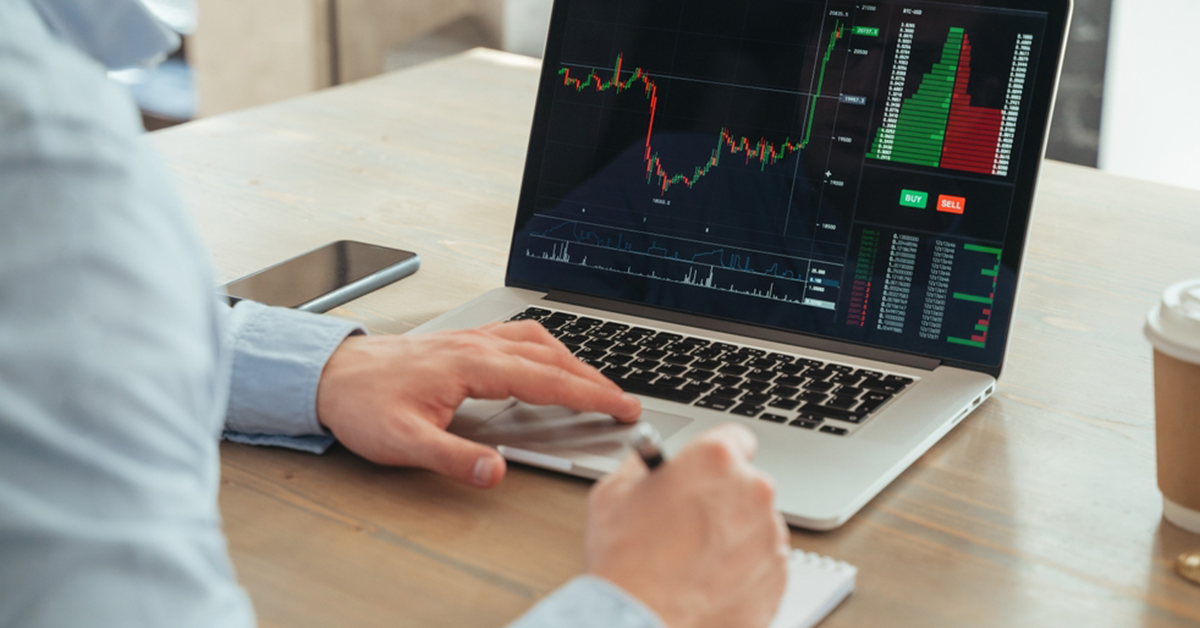
Stepping into a dedicated trading space with multiple screens humming can feel like walking into a command center. For active traders, a multi-monitor setup is not about showing off; it is about processing critical information without constantly toggling tabs. When paired with MetaTrader 5 (MT5), a native multi-monitor layout can transform how you track assets and execute trades in real time.
Why do I actually need more than one monitor for MT5?
Think of a single monitor like a tiny desk where you keep having to stack papers on top of each other just to read a new file. Multiple monitors are like spreading everything out neatly across a massive conference table. Forex markets move incredibly fast, and switching tabs to check a daily timeframe while looking at a 5-minute chart can cause you to miss sudden shifts.
By spreading your workspace across multiple screens, you can keep your primary charts, economic calendars, and order ticket windows visible simultaneously. This setup is particularly vital if you are trading with a best forex broker for mt5 that offers ultra-fast execution speeds. You need to see the setup and execute the trade in the exact same second, and extra screens make that possible.
Does MT5 natively support dragging charts onto different screens?
Yes, and this is actually one of the biggest upgrades MT5 has over its predecessor, MT4. In the older platform, you had to physically stretch the entire terminal window across your monitors, which looked messy and was a pain to configure.
With MT5, the process is incredibly smooth. You can simply right-click the tab of the chart you want to move and click “Docked” to uncheck it. Alternatively, you can use the keyboard shortcut Ctrl + D. This completely detaches the chart, transforming it into a floating window that you can drag and drop onto any monitor connected to your computer.
How should I logically arrange my screens for trading?
How you organize your display depends entirely on your personal style, but a classic three-screen setup is a great sweet spot for most intermediate traders. You want a clear hierarchy so your brain does not suffer from sensory overload.
Try using your central, eye-level monitor as your “Execution Station” where you keep your active, lower-timeframe charts and your order panel. Place your secondary screen to the side to display higher-timeframe trends or your overall watchlist. Finally, use your third monitor for non-charting essentials, like your broker’s terminal toolbox, news feeds, and an open browser tab tracking how to start forex trading resources or macroeconomic events.
Do I need a high-end gaming PC to run a multi-monitor setup?
Not at all. You do not need a liquid-cooled monster of a computer, but you do need to pay attention to a few hardware basics. Charting platforms are primarily heavy on the processor (CPU) and memory (RAM), rather than rendering high-end 3D graphics.
Ideally, aim for a modern processor and at least 16GB of RAM so your system does not stutter when multiple live-updating charts are active. The most critical piece of hardware is your graphics card (GPU). Make sure it has enough physical ports—like HDMI or DisplayPort—to physically plug in all the monitors you plan to use. If your computer is struggling, reducing the maximum number of bars displayed in your MT5 chart settings can instantly free up system memory.
What features make an MT5 broker ideal for a multi-screen setup?
A beautiful multi-monitor physical setup is only as good as the data feeding into it. When choosing a broker to power your screens, look closely at their server locations, execution latency, and feed consistency.
Because you will be monitoring multiple charts simultaneously, you want a broker that can feed real-time tick data to all those windows without lag or constant disconnections. Look for brokers that offer low latency execution and deep liquidity pools. These features ensure that when you spot a setup on screen three and click buy on screen one, your order is executed at the exact price you saw, without nasty slippage throwing off your math.
How do I save my multi-monitor layout so I don’t have to rebuild it every day?
There is nothing more frustrating than spending thirty minutes setting up your perfect multi-screen layout, only to lose it when you close the platform. Thankfully, MT5 handles this beautifully through its “Profiles” feature.
Once you have dragged your charts to their designated monitors and set up your indicators, navigate to the top menu bar in MT5. Click on File, hover over Profiles, and select Save As. Give your layout a recognizable name. The next time you open MT5, even if your monitors were disconnected or rearranged, you can simply load that profile, and every single detached chart will snap right back into its designated home.
Summary
A multi-monitor setup is the ultimate tool for visual organization, but it only works if you approach it with discipline. Do not fall into the trap of filling your extra screens with useless indicators or random assets just to make them look busy. Instead, use the physical space to declutter your mind, structure your charts logically, and coordinate your execution with a highly responsive, regulated MT5 broker.
